Learning how to block ads can make browsing cleaner, faster, and less distracting. Ads can appear as banners, pop-ups, autoplay videos, notifications, overlays, and personalized advertisements. Fortunately, modern browsers and devices provide several ways to reduce unwanted advertising. This guide explains how to block ads on Chrome, Android, iPhone, Windows, and other platforms. It also covers browser settings, extensions, pop-up controls, notification permissions, privacy settings, and what to do when unwanted ads continue appearing.
What Are Online Ads?
Online advertisements are promotional messages displayed on websites, applications, search engines, social media platforms, and other digital services. Businesses use ads to reach potential customers, while publishers often depend on advertising revenue to provide free content.
Ads can appear in many formats, including:
- Banner advertisements
- Pop-up advertisements
- Pop-under advertisements
- Video advertisements
- Sponsored content
- Native advertisements
- Push notifications
- Interstitial advertisements
- Personalized advertisements
- Search advertisements
Not every advertisement is harmful or intrusive. Many legitimate websites use advertising to support their content. However, excessive advertising can interfere with browsing and create a poor user experience.
If you are researching how to block ads, it is useful to understand the difference between normal advertisements and intrusive advertising. Google Chrome, for example, has built-in controls designed to prevent certain intrusive or misleading ad experiences.
Why Do People Want to Block Ads?
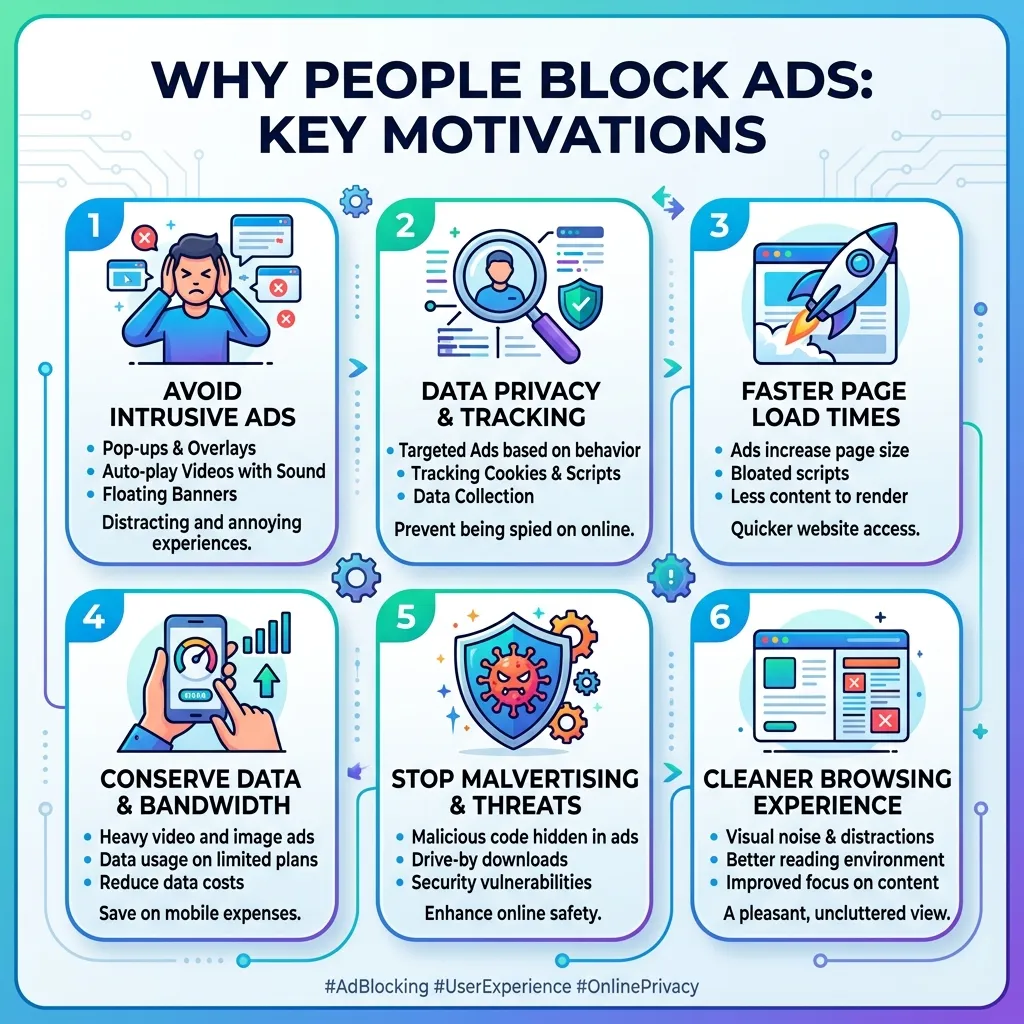
There are several reasons users search for how to block ads.
1. Better Browsing Experience
Too many advertisements can make websites difficult to navigate. Large banners, pop-ups, and full-screen advertisements may cover the content users actually want to read.
2. Fewer Pop-Ups
Pop-ups can open additional tabs or windows and interrupt browsing. Chrome blocks pop-ups automatically by default, while users can manage permissions for individual websites.
3. Faster Page Loading
Some advertisements require additional scripts, images, videos, and tracking resources. Reducing unnecessary content may improve the browsing experience, particularly on slower connections.
4. Reduced Distractions
If you are working, studying, or researching online, constant advertising can make it harder to concentrate.
5. More Control Over Personalization
Some users are more interested in limiting personalized advertising than eliminating every advertisement. Chrome provides separate ad privacy controls that allow users to manage features related to ad personalization and measurement.
How to Block Ads in Google Chrome
One of the most common questions is how to block ads in Chrome.
Chrome has built-in settings for intrusive advertisements, pop-ups, redirects, and site notifications. These controls do not necessarily remove every advertisement from every website, but they can reduce certain unwanted experiences.
Step 1: Open Chrome Settings
Open Google Chrome on your computer.
Click the three-dot menu in the upper-right corner and select Settings.
Step 2: Open Privacy and Security
Select Privacy and security.
Then open Site settings.
Step 3: Find Intrusive Ads
Go to Additional content settings and select Intrusive ads.
Chrome provides settings that help prevent intrusive or misleading advertising experiences.
This is one of the easiest methods for people learning how to block ads without installing additional software.
How to Block Pop-Up Ads in Chrome
Pop-ups are not exactly the same as regular website advertisements. A pop-up is a separate browser window or tab that appears automatically or after an interaction.
Chrome blocks pop-ups by default in many situations.
To check your settings:
- Open Chrome.
- Select the three-dot menu.
- Open Settings.
- Select Privacy and security.
- Choose Site settings.
- Select Pop-ups and redirects.
- Choose the appropriate blocking option.
Chrome also allows users to manage pop-ups for individual websites. Some legitimate websites require pop-ups for specific functions, so you may want to allow them only on trusted websites.
This approach is useful if your main problem is annoying pop-up advertising rather than all advertisements.
How to Block Ads on Android
Android users have several ways to reduce unwanted advertising.
If you use Chrome on Android, you can manage intrusive advertising through browser settings.
Chrome on Android
Open Chrome and follow these steps:
- Tap the three-dot menu.
- Select Settings.
- Tap Site settings.
- Find Intrusive ads.
- Review the available setting.
Chrome identifies certain websites with poor ad experiences, such as pages with excessive advertisements, flashing ads, autoplaying audio, or ad walls.
You can also manage pop-ups and redirects separately.
Block Pop-Ups on Android
Go to:
Chrome → Settings → Site settings → Pop-ups and redirects
Review the setting and block unwanted pop-ups.
Block Website Notifications
Sometimes users think they are seeing advertisements when they are actually receiving browser notifications from websites.
To control these notifications, review Chrome’s Notifications settings and block websites that you do not trust.
Google notes that unwanted notifications can sometimes contribute to intrusive experiences, and users can manage notification permissions through Chrome settings.
How to Block Ads on iPhone
If you use an iPhone or iPad, the process differs from Android.
Safari supports content-blocking extensions that can reduce certain types of advertising and tracking content. Users can install compatible content blockers through the App Store and enable them through Safari settings.
You can also manage website permissions and privacy settings to reduce unwanted tracking.
For Chrome users on iOS, Google’s current documentation notes that Chrome’s Ad privacy settings are not available on iOS in the same way they are on computer and Android.
Therefore, iPhone users who want broader ad filtering may consider Safari content blockers or other browser-based solutions.
How to Block Ads on Windows
Windows itself does not provide one universal switch that removes every online advertisement.
Instead, users generally control ads through their browser.
If you use Chrome:
- Open Chrome.
- Go to Settings.
- Select Privacy and security.
- Open Site settings.
- Review Intrusive ads.
- Review Pop-ups and redirects.
- Review Notifications.
You can also use a reputable browser extension designed to filter advertisements.
When installing extensions, choose trusted sources and review the permissions requested by the extension.
If advertisements appear even when you are not actively browsing, the issue may be different. Persistent pop-ups, unexpected redirects, unfamiliar extensions, or repeated changes to your homepage can be signs of unwanted software. Google recommends checking for unwanted programs and resetting browser settings when appropriate.
How to Block Ads Using a Browser Extension
Another popular answer to how to block ads is to use a browser-based content or ad-blocking extension.
An extension can filter certain advertising requests before the browser displays them.
The general process is:
- Open your browser’s official extension store.
- Search for a reputable ad-blocking extension.
- Review its publisher and permissions.
- Install the extension.
- Follow its setup instructions.
- Test it on websites you regularly visit.
A browser extension can provide more aggressive filtering than basic browser settings.
However, users should be selective when installing extensions. An extension has access to parts of your browsing environment depending on the permissions it receives. Avoid unknown extensions with suspicious publishers or excessive permissions.
How to Block Ads Without Installing an Extension
Not everyone wants to install an ad blocker.
Fortunately, you can still reduce some unwanted advertisements using built-in browser controls.
The most useful options include:
- Blocking intrusive ads
- Blocking pop-ups
- Blocking redirects
- Blocking unwanted notifications
- Managing site permissions
- Adjusting ad privacy settings
- Removing suspicious extensions
- Removing unwanted software
Chrome’s site settings allow users to control different permissions for individual websites as well as default browser behavior.
This makes built-in controls a good starting point for anyone researching how to block ads safely.
How to Block Personalized Ads
Blocking advertisements and blocking personalized advertisements are two different things.
You may still see advertisements after changing personalization settings. The difference is that the ads may be less tailored to your interests.
Chrome includes Ad privacy controls for managing features such as ad topics, site-suggested ads, and ad measurement.
To review these controls on supported devices:
- Open Chrome.
- Go to Settings.
- Select Privacy and security.
- Choose Ad privacy.
- Review the available features.
You can manage ad topics and site-suggested advertising settings.
Keep in mind that turning off personalization does not necessarily eliminate advertisements. It mainly changes how certain advertising features use information to personalize ads.
How to Block Ads From Specific Websites
Sometimes you do not want to block every advertisement. You may simply want to stop intrusive behavior from a particular website.
Chrome allows site-specific permissions.
To manage a website:
- Open the website.
- Select the site information icon next to the address.
- Open Site settings.
- Review the available permissions.
- Change the relevant permission.
Chrome allows individual site settings to override broader default settings.
This is useful when a website repeatedly sends unwanted notifications, redirects, or other intrusive content.
How to Block Ads That Appear as Notifications
Browser notifications are sometimes mistaken for regular advertisements.
For example, you may see a promotional message on your desktop even when the browser window is closed or minimized.
This can happen if you previously allowed a website to send notifications.
To address this problem:
- Open Chrome.
- Go to Settings.
- Select Privacy and security.
- Open Site settings.
- Select Notifications.
- Review websites under the allowed list.
- Block websites you do not recognize or no longer want to hear from.
Chrome provides controls for managing website notification permissions.
If you repeatedly receive suspicious notifications, avoid clicking them. Instead, remove the site’s permission and investigate whether unwanted software is installed.
How to Block Ads When They Keep Coming Back
Sometimes users try several methods but advertisements continue appearing.
If ads persist, the problem may not be ordinary website advertising.
Watch for signs such as:
- New tabs opening unexpectedly
- Your homepage changing
- Your search engine changing without permission
- Unknown extensions appearing
- Frequent redirects
- Fake virus warnings
- Ads appearing on websites that normally do not show them
Google identifies these behaviors as possible signs of unwanted software or malware.
Check Installed Extensions
Open your browser’s extension manager.
Remove extensions that you do not recognize or no longer need.
Check Installed Applications
On Windows, review your installed applications and uninstall suspicious software.
Reset Browser Settings
If unwanted behavior continues, consider resetting the browser to its original settings.
Google recommends checking for unwanted programs before resetting browser settings.
How to Block Ads While Keeping Websites Working
Aggressive ad blocking can sometimes interfere with legitimate website functions.
A website may depend on advertising scripts, content delivery systems, embedded videos, or other third-party resources.
If a website stops working correctly after enabling an ad blocker, you can consider allowing that trusted website.
Chrome supports site-specific settings, allowing you to change permissions without changing your default settings for every website.
A balanced approach is often better:
Block intrusive advertising → Keep trusted websites accessible → Allow specific sites when necessary.
This gives you more control without unnecessarily breaking website functionality.
Advantages of Blocking Ads
Learning how to block ads can provide several practical benefits.
Cleaner Web Pages
Removing intrusive advertising can make pages easier to read and navigate.
Fewer Interruptions
Blocking pop-ups and redirects reduces interruptions during browsing.
Better Focus
Fewer distractions can make online work and research easier.
Improved Privacy Control
Managing ad personalization and tracking settings gives users greater control over certain types of advertising data.
Potentially Lower Data Usage
Some advertisements contain images, scripts, or video resources. Reducing them may decrease the amount of content your browser loads.
Disadvantages of Blocking Ads
Ad blocking also has potential disadvantages.
Some Websites Depend on Advertising
Many websites provide free content because advertising helps fund their operations.
Some Features May Break
Certain websites rely on advertising or third-party scripts. Blocking these resources can occasionally interfere with page functionality.
Some Websites Restrict Ad-Blocked Visitors
A website may ask users to disable an ad blocker before accessing certain content.
Not Every Advertisement Is Dangerous
Advertisements are not automatically harmful. The main goal should be reducing intrusive or misleading advertising rather than assuming every ad is unsafe.
For publishers and marketers, understanding how advertising works is equally important. You can learn more through Programmatic Advertising: The Complete Guide.
How to Block Ads Safely
When searching for how to block ads, safety should be a priority.
Avoid downloading random applications advertised through suspicious pop-ups.
Instead:
- Use official browser stores.
- Check the publisher.
- Review extension permissions.
- Keep your browser updated.
- Keep security software active.
- Avoid suspicious downloads.
- Do not click fake virus warnings.
- Do not install unknown “ad removal” software.
Google recommends avoiding suspicious downloads and fake security warnings, particularly when a website asks you to disable security protections or download unexpected software.
A legitimate security solution should never require you to trust an unknown website blindly.
How to Block Ads and Protect Your Privacy
Ad blocking and privacy protection are related but not identical.
An ad blocker focuses primarily on filtering advertisements or related requests.
Privacy controls focus on limiting how information is used for personalization, measurement, or tracking.
For example, Chrome’s Ad privacy settings allow users to manage ad topics, site-suggested ads, and ad measurement features.
You can combine several approaches:
Ad filtering + privacy settings + cookie controls + safe browsing habits
Together, these can create a more controlled browsing environment.
Best Practices for Ad-Free Browsing
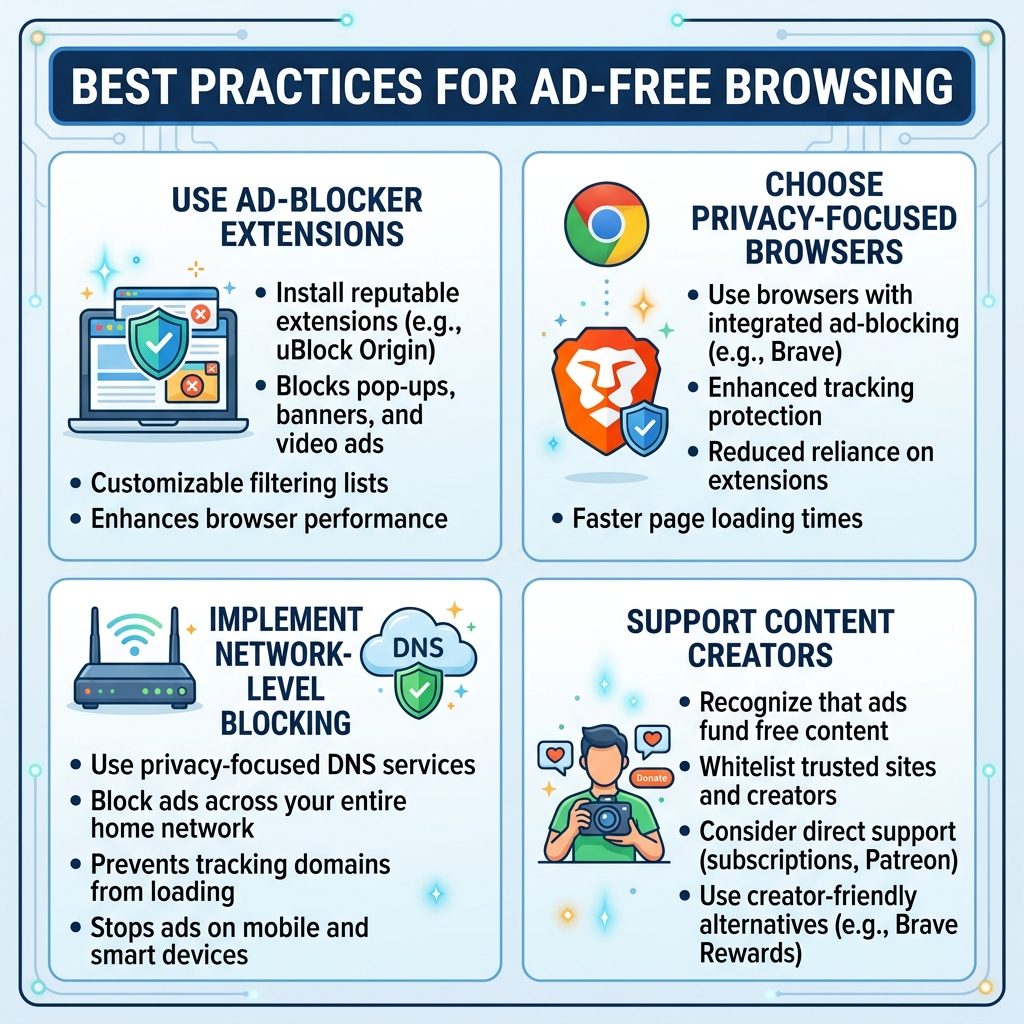
If you want a smoother browsing experience, follow these practices:
- Keep your browser updated.
- Use built-in intrusive ad controls.
- Block unnecessary pop-ups.
- Review notification permissions.
- Remove unknown browser extensions.
- Install extensions only from trusted sources.
- Review your ad privacy settings.
- Avoid suspicious websites and downloads.
- Allow advertisements on trusted websites when appropriate.
- Investigate persistent unwanted ads for possible malware.
These steps provide a balanced approach to how to block ads without unnecessarily damaging normal browsing functionality.
How to Block Ads: Quick Comparison
| Method | Best For | Requires Installation? |
|---|---|---|
| Intrusive ad settings | Basic ad control | No |
| Pop-up blocking | Pop-ups and redirects | No |
| Notification blocking | Promotional notifications | No |
| Ad privacy settings | Personalized ads | No |
| Browser extension | Broader ad filtering | Yes |
| Site permissions | Specific websites | No |
| Malware removal | Persistent unwanted ads | Sometimes |
The best method depends on the type of advertising you are experiencing.
Conclusion
Learning how to block ads does not require complicated technical knowledge. Modern browsers provide built-in controls for intrusive advertisements, pop-ups, redirects, and notifications. Users can also manage ad personalization and privacy settings or install reputable content-blocking extensions when broader filtering is needed.
The right approach depends on the type of advertising you are experiencing. If the problem is pop-ups, start with pop-up and redirect controls. If websites are sending promotional notifications, review notification permissions. If you want broader filtering, consider a reputable browser extension. And if advertisements appear unexpectedly alongside redirects or browser changes, investigate possible unwanted software rather than treating the issue as ordinary advertising.
Ultimately, the goal of how to block ads is not simply to remove every advertisement. It is to create a cleaner, safer, and more controlled browsing experience while maintaining access to legitimate websites and services.
By combining browser controls, privacy settings, safe browsing habits, and carefully selected extensions, you can significantly reduce unwanted advertising without compromising your overall online experience.
Frequently Asked Questions
1. How to block ads in Chrome?
Open Chrome Settings, go to Privacy and security → Site settings → Additional content settings → Intrusive ads, and review the available options. Chrome also provides separate controls for pop-ups and redirects.
2. How to block ads on Android?
In Chrome on Android, open Settings → Site settings → Intrusive ads. You can also manage pop-ups, redirects, and notifications separately.
3. How to block ads on iPhone?
Safari users can install compatible content-blocking extensions and manage them through Safari settings. Chrome on iOS has different ad privacy functionality from Chrome on Android and desktop.
4. Can I block ads without an ad blocker?
Yes. Browser settings can reduce intrusive ads, pop-ups, redirects, and unwanted notifications without installing an extension.
5. Why am I still seeing ads after blocking them?
Browser-level blocking does not necessarily remove every type of advertisement. You may also be seeing personalized ads, website-controlled advertising, or advertisements that your particular blocking method does not filter.
6. How can I stop pop-up ads?
Use your browser’s Pop-ups and redirects settings and make sure unwanted websites are not allowed to open pop-ups. Chrome provides both default and site-specific controls.
7. How can I stop advertising notifications?
Review your browser’s notification permissions and block websites that have permission to send unwanted notifications.
8. Does blocking personalized ads remove all ads?
No. Turning off personalization generally affects how certain advertisements are selected for you; it does not mean that every advertisement will disappear.
9. Are all online ads harmful?
No. Many legitimate websites rely on advertising to fund free content and services. The main concern is usually excessive, misleading, or intrusive advertising.
10. Why are ads suddenly appearing everywhere?
If advertisements are appearing unexpectedly, especially alongside redirects, new tabs, homepage changes, or unfamiliar extensions, your browser or device may have unwanted software.
11. Can an ad blocker slow down my browser?
A reputable extension may add some processing overhead, but filtering unnecessary advertising resources can also reduce the amount of content a browser needs to load. The effect varies by browser, device, and extension.
12. Should I block ads on every website?
Not necessarily. Some websites depend on advertising revenue. A balanced approach is to block intrusive advertising while allowing trusted websites when you want to support their content.